













Payment Gateway for Bachs for WooCommerce needs two things from your Bachs account before it can take payments: an API key and a webhook endpoint. The API key lets the plugin talk to Bachs (create checkout sessions, issue refunds). The webhook endpoint lets Bachs talk back to your store, so an order moves from “pending” to “processing” the moment a customer pays.
This guide walks you through creating both, in the Bachs dashboard and in your WooCommerce settings, and testing the connection safely before you go live.
Before you start
- A Bachs account with dashboard access at
app.bachs.io. - WooCommerce installed and active on your site.
- Payment Gateway for Bachs for WooCommerce installed and active.
- Your store currency set to USD or NGN. Bachs supports only these two currencies today. If your store uses another currency, Bachs won’t appear as a payment option at checkout, even after setup.
Note: Ensure you have enabled balances for the selected currency for your business in Bachs. You can do that from Bachs Dashboard> Settings > Payout Destinations and Currencies.
Step 1: Create your API key
To create your API key, go to the Bachs dashboard and open Developer → API keys.
- Log in at
app.bachs.io. - Go to Developer Portal → API keys.
- Click + Create Secret Key.
- Enter a Name for the key. This is a free-text label for your own reference, for example
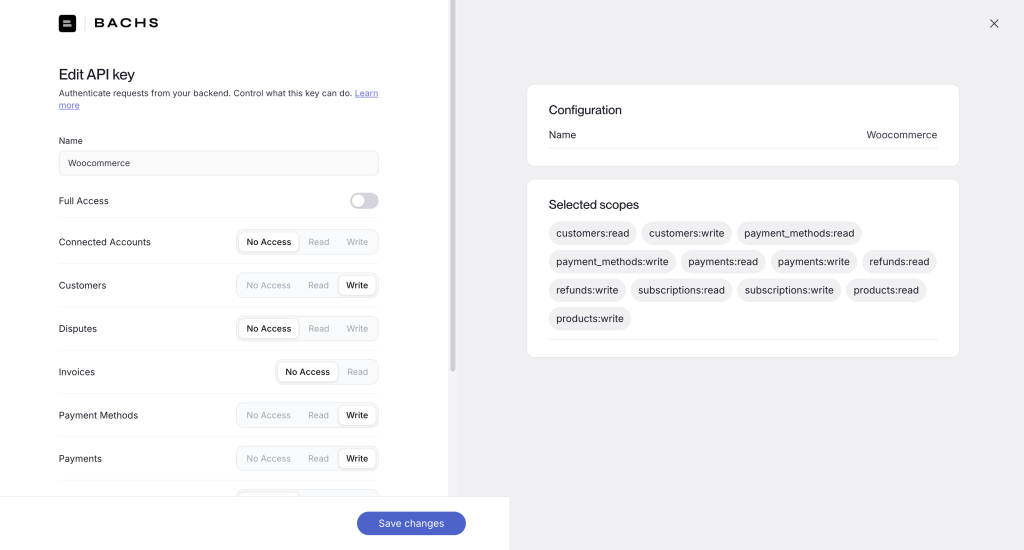
production-backend. It doesn’t change how the key works. - Set these Scopes below. Do not turn on Full Access.
Read Customers, Write Customers, Read Payment Methods, Write Payment Methods, Read Payments, Write Payments, Read Refunds, Write Refunds, Read Subscriptions, Write Subscriptions, Read Products, Write Products
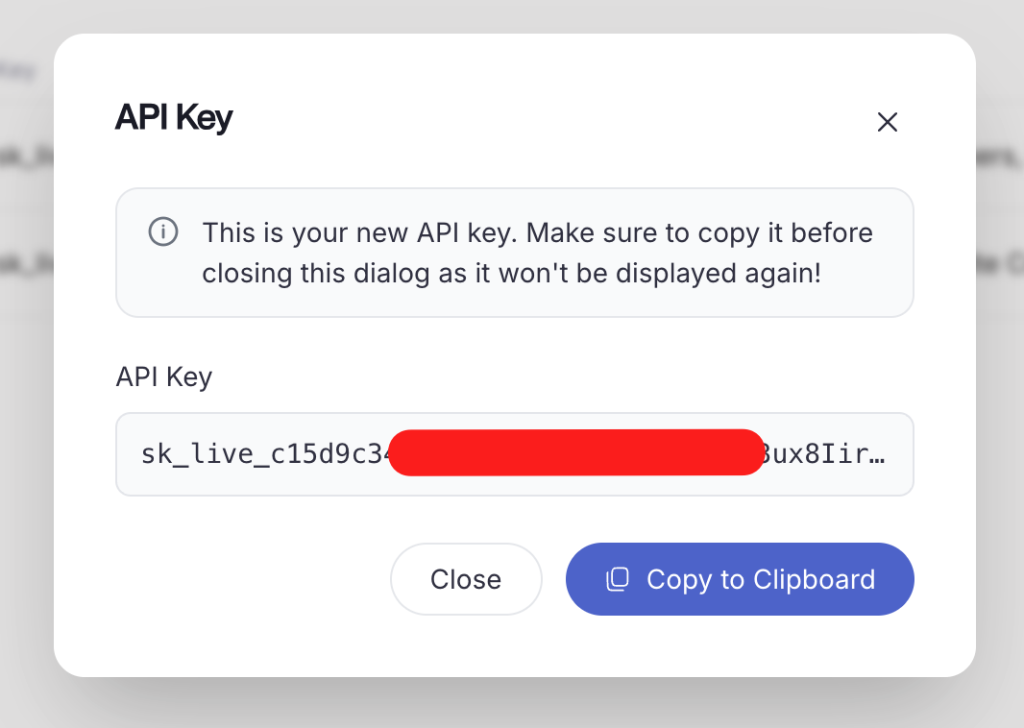
Copy the key immediately. Bachs shows the plain key exactly once, right after you create it. Copy it into a Secrets Manager or an environment variable before you close the dialog. You cannot retrieve it again later. If you lose it, use Rotate API Key to issue a new one; see “Managing a key later” below.
You need a separate key for each environment. Repeat this step for a sandbox key (starts with sk_sandbox_) and for a live key (starts with sk_live_) when you’re ready to go live. Keys are environment-scoped: a sandbox key never works against the live API, and a live key never works against sandbox.
Managing a key later
You don’t have to delete and recreate a key to change it. From the key’s detail page in Developer Portal → API keys, you can:
- Edit scopes: change what the key can do without regenerating the secret. Takes effect immediately.
- Rotate API Key: invalidates the old secret and issues a new one, while keeping the same name and scopes. Use this if a key leaks or you lose the copied value.
- Revoke a key: turns the key off for good. Use this when you retire a key.
Each key’s detail panel also shows a short key prefix (for example 8dab0752), so you can match a key to log entries without exposing the full secret. Bachs applies rate limits per key; if a request gets rate-limited, back off and retry rather than creating extra keys.
Step 2: Add the API key to the plugin
To find the plugin settings, go to WooCommerce → Settings → Payments.
- Click Bachs to open its settings.
- Check Enable Bachs.
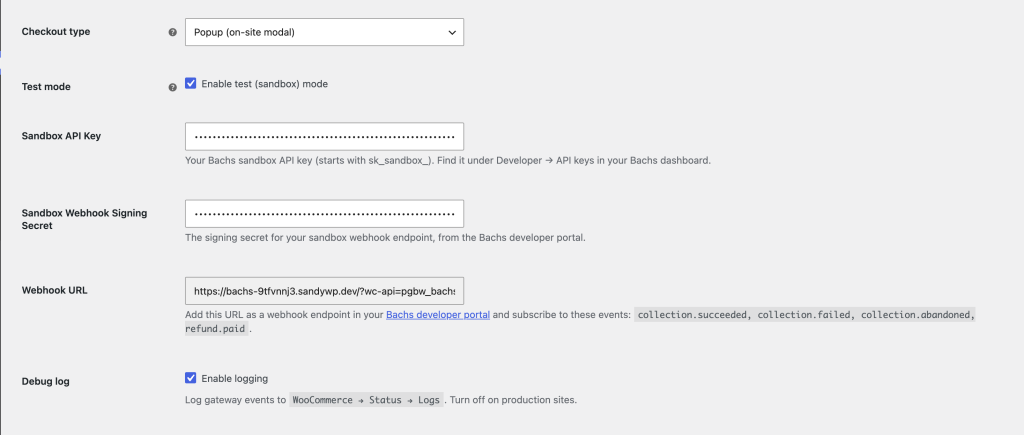
- Make sure Enable test (sandbox) mode is checked. Leave it checked for now; you’ll test in sandbox first.
- Paste your sandbox key into Sandbox API Key.
- Click Save changes.
Step 3: Create the webhook destination
The plugin generates its own webhook URL and shows it on the settings screen, in the read-only Webhook URL field. The general form is your store URL with a wc-api=pgbw_bachs handler, but always copy the exact value from the field rather than typing it yourself. WooCommerce builds this URL for you, and permalink settings can change its exact shape.
- On the Bachs settings screen, copy the value from the Webhook URL field.
- In the Bachs dashboard, go to the Webhook tab from the Developer Portal.
- Click Add destination.
- Paste the copied value into URL. The endpoint must be a public
https://address; Bachs rejectshttp://URLs. - Enter a Name for the endpoint, for example
production-server. This is a label for your own reference. - Under Events, subscribe to these four events, and no others:
collection.succeededcollection.failedcollection.abandonedrefund.paid
- Save the destination.
The destination goes live immediately after you save it.
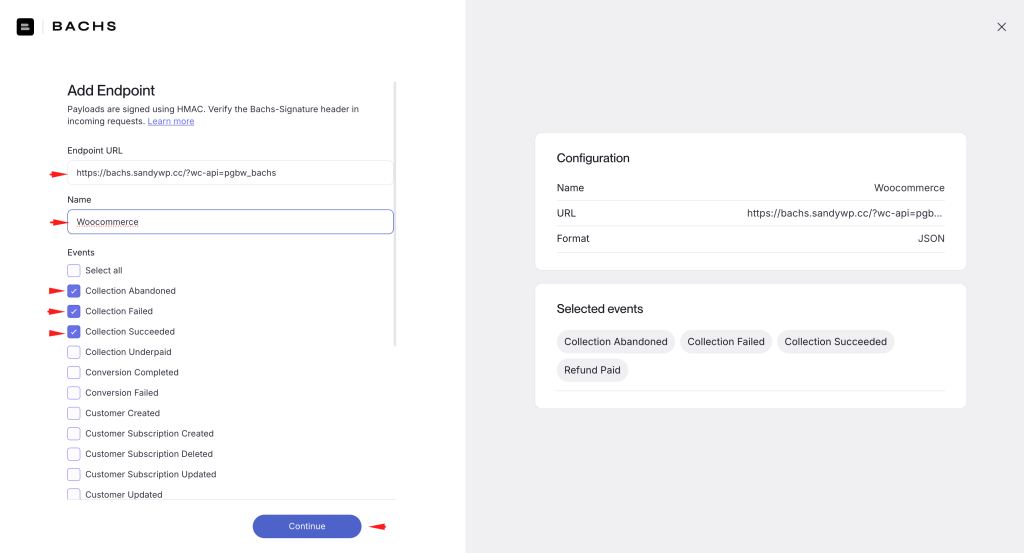
Create a separate webhook destination for sandbox and for live. Each environment needs its own destination pointed at the same URL, subscribed to the same four events.
Step 4: Add the webhook signing secret to the plugin
Bachs generates a signing secret for each destination automatically, but it doesn’t show you the secret at creation time. You reveal it from the destination’s detail page.
- In the Bachs Webhook tab, open the destination you just created.
- Find the masked signing secret and click the eye icon next to it to reveal it, or copy it directly.
- In WordPress, go back to WooCommerce → Settings → Payments → Bachs.
- Paste the secret into Sandbox Webhook Signing Secret (or Live Webhook Signing Secret, if this is your live destination).
- Click Save changes.
Step 5: Test in sandbox, then go live
Test the full flow in sandbox before you touch live keys.
- Confirm Enable test (sandbox) mode is checked and your sandbox API key and webhook secret are both saved.
- Place a test order at checkout, using Bachs as the payment method.
- Complete the payment on the Bachs-hosted page (or in the popup, depending on your Checkout type setting).
- Confirm the order status changes automatically. It should move from Pending payment to Processing, without you touching the order.
Verify it works
A successful test order shows:
- Order status: Processing (or Completed, depending on your product settings).
- An order note reading “Bachs payment completed” with a charge ID.
- If you enabled Debug log, a matching entry under WooCommerce → Status → Logs, source
pgbw_bachs.
If the order stays on Pending payment after you pay, the webhook didn’t arrive or was rejected. See Troubleshooting below.
Go live
Once sandbox testing works end to end, repeat steps 1 through 4 with your live credentials:
- Create a live API key (Step 1), using the same scopes.
- Paste it into Live API Key (Step 2).
- Create a second webhook destination in the Bachs dashboard, pointed at the same Webhook URL, subscribed to the same four events (Step 3).
- Paste the live signing secret into Live Webhook Signing Secret (Step 4).
- Place one real, small order to confirm the live path works.
- Uncheck Enable test (sandbox) mode and save.
Only uncheck test mode after you’ve confirmed the live key and live webhook both work. Once test mode is off, the plugin uses your live key for every order.
Other settings on this screen
These fields don’t affect your API key or webhook connection, but they live on the same settings page:
- Title and Description: what customers see at checkout. Default title is “Bachs”.
- Checkout type: Redirect sends customers to the Bachs hosted page; Popup opens Bachs in an on-site modal. Default is Redirect.
- Debug log: logs gateway activity to WooCommerce → Status → Logs. Turn this off on a live store once you’ve confirmed everything works.
Reading the logs
When a payment fails, the plugin’s log is the fastest way to see why. Every entry below matches a specific error in the Troubleshooting section.
Turn on logging
- Go to WooCommerce → Settings → Payments → Bachs.
- Check Enable logging (the Debug log setting).
- Click Save changes.
Read the log
- Go to WooCommerce → Status → Logs.
- Open the log whose source is
pgbw_bachs(the file list and the source dropdown both use that name).
Errors are always recorded, even with logging off. Failed payments show up as lines like process_payment error for order #15: Bachs API error (403): API key missing required scope: products:write.
Troubleshooting
Bachs isn’t offered at checkout. Confirm Enable Bachs is checked, the API key field for the active mode has a value, and your store currency (WooCommerce → Settings → General) is USD or NGN.
403: API key missing required scope: products:write. The key lacks that scope. Open the key in Developer → API keys, click Edit scopes, and grant only the named resource.
400: price: amount must be at least 1000.00 NGN. The naira total is below Bachs’s ₦1,000 minimum. Raise the order value or set a minimum order amount on your store.
422: base_currency 'NGN' is not held by this organization. Enable Nigerian naira balances for your business in the Bachs dashboard, then retry.
Orders stay on Pending payment after a successful payment. The webhook didn’t verify. Check the destination is subscribed to the four events, the signing secret matches (reveal it with the eye icon on the destination), and your server clock is within 300 seconds of real time.
Works in sandbox but fails live (or vice versa). A key is in the wrong field. Sandbox keys start sk_sandbox_, live keys sk_live_; match the prefix to the field and to Test mode.
No Bachs charge ID is stored on this order. That order was never paid through Bachs, so there’s nothing to refund.
Further reading
- Bachs API keys documentation: https://docs.bachs.io/developer-portal/api-keys
- Bachs webhooks documentation: https://docs.bachs.io/developer-portal/webhooks